 Inside

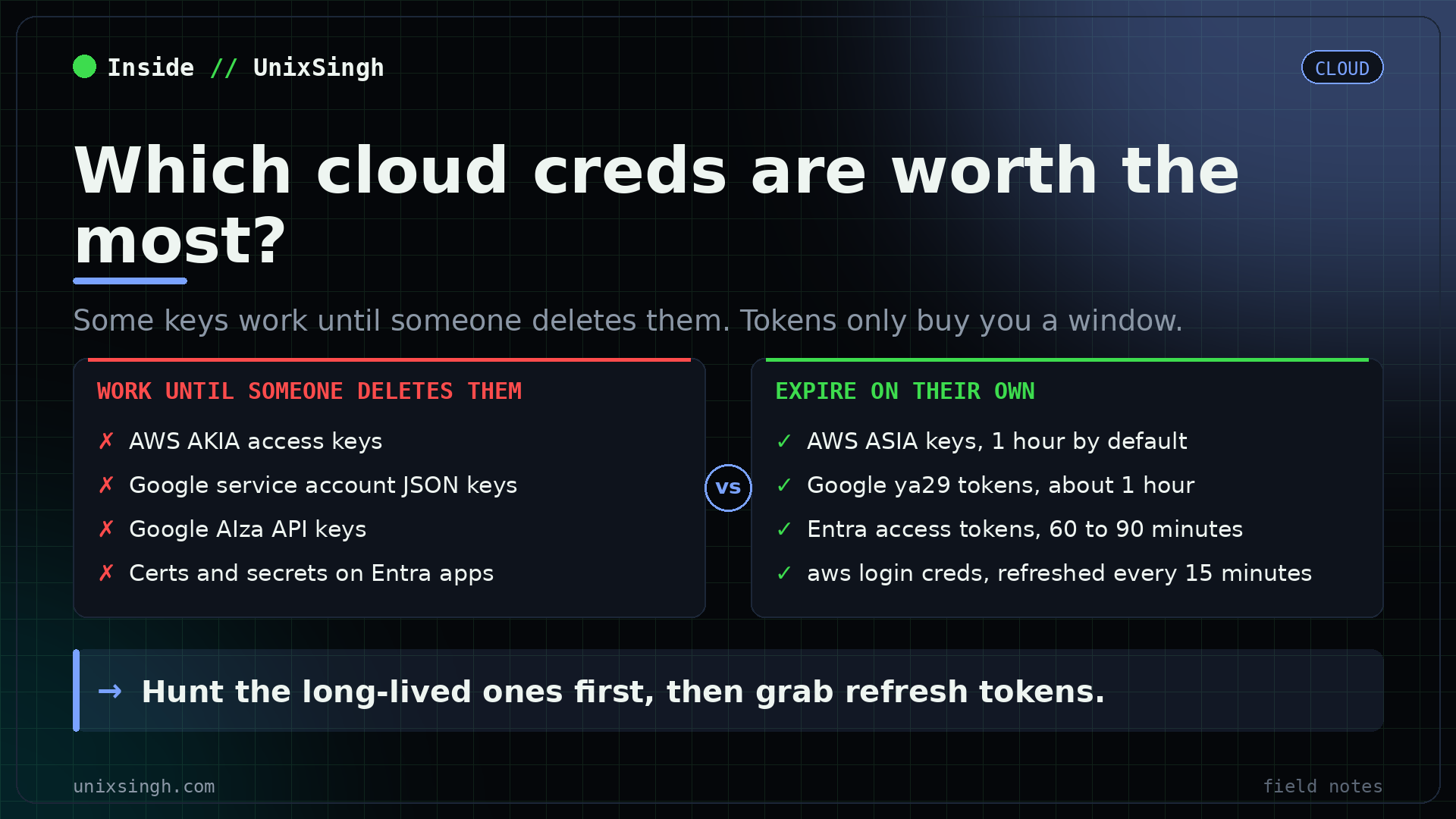
The first 4 letters of an AWS key tell you most of what you need. AKIA is a long-term key that works until someone deletes it. ASIA is a temporary one that dies in about an hour and needs a session token to work at all.
Every cloud has tells like that, and most cloud findings you'll write start with a login: a password you can spray, a key someone left in a repo, a token sitting in a file. This post walks you through how people and apps log in to Microsoft Entra ID, AWS and Google Cloud, where the creds end up on a test, how to reuse them in your own lab, and what to check on each one. If the service names still trip you up, the cloud name map lines them up first.
5 ways things log in to the cloud
Whatever cloud you're in, you'll see the same 5 ways to log in. People type passwords. Apps and scripts use keys, tokens or an identity the cloud gives them.
| Method | Used for | What it means on a test |
|---|---|---|
| Username and password | People logging in to portals | Spray targets. Check lockout and MFA |
| API keys and access keys | Apps and scripts calling cloud APIs | Turn up in code, config files, env vars and CI logs |
| Access tokens | Short-lived creds for APIs | Temporary, but they work until they expire |
| Service accounts, workload and managed identities | VMs, functions and automation | Non-human, often given far more rights than they need |
| MFA | Extra check on supported logins | Often doesn't apply to service accounts, workload identities or cert logins |
That last row is the one you'll care about most. A service principal or an AWS key logs in with a secret, so if you've got the secret, you're in. There's no phone for anyone to tap.
Find out how an Entra ID tenant logs in
First, a naming note. Azure AD is now Microsoft Entra ID, and Azure AD Connect is now Microsoft Entra Connect Sync. Your clients and your older tools still use the old names, so you'll hear both, often in the same meeting.
On an Entra job you're after 3 answers: how users log in, whether old login methods are still on, and whether you can steal creds or tokens and reuse them. You don't need any creds for the first one. Put any address at the client's domain into this URL:
https://login.microsoftonline.com/getuserrealm.srf?login=user@example.com&xml=1You only need one field: NameSpaceType. If it says Managed, Microsoft checks the password, through Password Hash Sync or Pass-through Auth. If it says Federated and there's an AuthURL line, logins go to AD FS or another identity provider, and you've got your next target.
Want the fuller outside view, with every domain and the sync and SSO settings? AADInternals gives it to you in one line of PowerShell:
Invoke-AADIntReconAsOutsider -DomainName example.com | Format-TablePassword Hash Sync, Pass-through Auth and AD FS: what to test
Most tenants you'll test are hybrid: users live in on-prem Active Directory and get copied up to the cloud. What changes between the 3 setups is where the password gets checked, and that tells you where to aim.
| Method | Password checked by | What to test |
|---|---|---|
| Password Hash Sync (PHS) | Microsoft, using a synced hash | Spraying at Microsoft, MFA and Conditional Access gaps, the Entra Connect server |
| Pass-through Auth (PTA) | An on-prem agent, against AD | The agent servers. Own one and you see every password |
| AD FS (federation) | The client's own AD FS server | Spraying the AD FS portal, patching, the token-signing cert |
| Conditional Access | Rules on top of all three | Excluded users, loose trusted locations, legacy auth not blocked |
Password Hash Sync
Entra Connect Sync is a service on one of the client's on-prem servers. It takes each user's AD password hash, hashes it again, and sends that up to Entra ID. Your users then log in to Microsoft 365 and Azure with their normal domain password, and Microsoft does the checking.
So you can spray straight at Microsoft's login page. Before you do, check the client's lockout settings: Smart Lockout locks an account after 10 failed tries by default, and you don't want to lock out the finance team on day one. Check the provider rules of engagement and agree spray limits in writing too.
The Entra Connect server is Tier 0, which means it's as sensitive as a domain controller. It can read password data from AD, so if you own it, you're close to owning both AD and the tenant. Newer builds (2.5.x onwards) log in to Entra with application-based auth, a service principal with a certificate, in place of the old Sync_<server>_... account and its stored password. Which one has your client got? Run this in PowerShell on that server:
Get-ADSyncEntraConnectorCredentialIf you see ConnectorIdentityType: Application, it's the newer model. If you see ServiceAccount, the legacy sync account's still in use. While you're there, flag any admin account that's synced from AD. Microsoft's advice is that privileged cloud accounts should be cloud-only, so an AD compromise can't reach them.
Pass-through Auth
With PTA, your users' password hashes don't go to the cloud at all. An agent on an on-prem server takes each cloud login and checks it against AD as it happens. Entra Connect still syncs the accounts themselves.
Sounds safer, but there's a catch. That agent sees every password in clear text while it checks it. If you get admin on the agent server, you can capture passwords or approve any login you like (AADInternals has a PTA spy for exactly this). Count the agents too: too few is an outage risk, and any agent on a weakly hardened server is a finding.
Desktop SSO and the AZUREADSSOACC account
Seamless SSO often runs alongside PHS or PTA, so domain-joined PCs log in to Microsoft 365 without a prompt. It works through a computer account in AD called AZUREADSSOACC. If you steal that account's password hash, you can forge Kerberos tickets to log in to Entra ID as other users.
Get-ADComputer AZUREADSSOACC -Properties PasswordLastSetMicrosoft recommends rolling that key at least every 30 days. If you see a PasswordLastSet date from years ago, it's worth reporting.
AD FS
With AD FS, passwords stay on-prem. Entra ID trusts the client's AD FS server, which checks the login and hands out signed tokens. So you spray the AD FS sign-in page, usually /adfs/ls/ on port 443. From the internet you'll normally reach it through a Web Application Proxy (WAP) sitting in the DMZ. Spray Microsoft's page instead and you won't hit anything.
The real prize is the token-signing certificate. If you steal it, you can sign your own tokens for any user, admins included, with MFA claims baked in. That attack is called Golden SAML. Microsoft now pushes clients off AD FS and onto cloud auth, with PHS as its recommendation. So if you're still finding AD FS in 2026, note it as a design issue on top of any bugs.
Certificate auth and app credentials as a backdoor
Entra ID now does certificate-based authentication (CBA) itself, so AD FS isn't needed for it. You'll want to check where the private keys are stored, when certs expire, and how a cert gets matched to a user.
That matching gives you one more reason to treat the Entra Connect server as Tier 0. Microsoft's docs say AD admins, including anyone with admin rights on the Entra Connect servers, can change the certificateUserIds value for any synced account. No cloud admin role is needed.
On the attack side, you can add a certificate or a client secret to an app registration or service principal and keep your access quietly. So on a review, list every service principal that has one, then check who added it and when:
Get-MgServicePrincipal -All | Where-Object { $_.KeyCredentials -or $_.PasswordCredentials } | Select DisplayName, AppIdAnything you can't tie to a known app or a change ticket deserves a closer look. Ask who added it.
Azure CLI tokens: where they live and how to reuse them
Azure logins run on OAuth tokens. An access token works for one resource, such as Microsoft Graph or Azure Resource Manager. A refresh token lets you swap it for new access tokens to any other service the user can reach, so it's the one you want.
The Azure CLI saves its tokens on disk, so if you land on an admin's laptop or jump box, it's worth a look:
| OS | File | Protected? |
|---|---|---|
| Linux and macOS | ~/.azure/msal_token_cache.json | Plain text |
| Windows | %USERPROFILE%\.azure\msal_token_cache.bin | Encrypted with DPAPI |
| Old CLI versions | %USERPROFILE%\.azure\accessTokens.json | Plain text |
If you're on a session that's already logged in, ask the CLI for a Graph token, then reuse it in your own PowerShell modules:
az account get-access-token --resource-type ms-graph
Connect-AzAccount -AccessToken $token -AccountId user@example.com
Connect-MgGraph -AccessToken ($token | ConvertTo-SecureString -AsPlainText -Force)
The first line prints a JSON blob with an accessToken field and its expiresOn time. You put that value in $token. Watch out: Connect-AzAccount wants a token for Azure Resource Manager, while Connect-MgGraph wants a Graph one, and the newer Graph SDK only takes it as a SecureString, so you convert it first. Handy tools for this: ROADtools (roadrecon), TokenTactics and TokenTacticsV2 for swapping refresh tokens, AADInternals and GraphRunner.
How long have you got? Not long. An Entra access token gets a random life of 60 to 90 minutes by default. Apps that support Continuous Access Evaluation can get ones lasting 24 to 28 hours, which Entra can kill early on events like a password change. A refresh token stays valid until it sits unused for 90 days or gets revoked. Once you've used stolen tokens in a test, check the client can kill them: revoking the user's sessions should stop the refresh token working.
Legacy auth and SMTP AUTH in 2026 and 2027
Legacy auth means old protocols that can't do MFA. Microsoft switched off most basic auth in Exchange Online back in October 2022, but you'll still find one gap: SMTP AUTH with basic auth.
It stays as it is until the end of December 2026, when it goes off by default for existing tenants. Admins can still switch it back on after that, and Microsoft plans to announce the final removal date in the second half of 2027. So you'll want to check for it on every Microsoft 365 job through 2026 and 2027. Basic SMTP AUTH (client submission to smtp.office365.com on port 587) skips MFA, and it's a well-known spray target.
In the Entra sign-in logs, you can filter Client app for the legacy clients. Then confirm a Conditional Access policy blocks legacy auth for everyone, with no excluded groups.
AWS access keys: read the prefix first
AWS gives you 2 ways in. Console access is a password (plus MFA) on the web portal, for people. Programmatic access is an access key ID and secret access key, plus a session token if they're temporary, for the CLI, SDKs and your tools.
Every AWS ID starts with 4 letters that tell you what it is. Learn the first 2 by heart:
| Prefix | What it is | Notes |
|---|---|---|
AKIA | Long-term access key | Belongs to an IAM user. Never expires on its own. The best find on a test |
ASIA | Temporary key from STS | Needs its session token. Expires, so use it fast |
AROA | Role ID | Seen in AssumedRoleId |
AIDA | IAM user ID | |
AGPA | Group | |
ANPA | Managed policy | |
AIPA | EC2 instance profile |
Here's what temporary creds look like when a role is assumed. This is the shape from the AWS docs, with the values swapped for placeholders:
The AssumedRoleId is the role ID plus the session name. In the ARN, s3-read is the role and s3-access is the session. Expiration tells you when the creds die: 1 hour (3,600 seconds) by default, longer if the role allows it, up to 12 hours.
Where AWS credentials hide, and how to use them
| Place | Path or location | What's there |
|---|---|---|
| CLI config | ~/.aws/credentials, ~/.aws/config | Profiles, often AKIA keys in plain text |
| SSO cache | ~/.aws/sso/cache/*.json | SSO tokens |
| CLI cache | ~/.aws/cli/cache/*.json | Cached role creds |
| Env vars | AWS_ACCESS_KEY_ID, AWS_SECRET_ACCESS_KEY, AWS_SESSION_TOKEN | Live creds |
| EC2 metadata | 169.254.169.254 | Role creds for the instance |
| ECS tasks | 169.254.170.2 plus $AWS_CONTAINER_CREDENTIALS_RELATIVE_URI | Task role creds |
| Lambda | Env vars inside the function | Function role creds |
| Code and CI | Git repos, .env files, pipeline logs, Terraform state | Leaked keys |
Found a key? Start with 2 quiet commands. Neither one changes anything:
aws sts get-caller-identity
aws sts get-access-key-info --access-key-id AKIAXXXXXXXXXXXXXXXX
get-caller-identity works with any valid key and needs no permissions, so it can't be blocked by IAM policy. It tells you the account and the user or role behind the key. get-access-key-info tells you which account a key belongs to, and the call is logged in your account, not the target's, which makes it quiet recon.
To use the key, load it into its own named profile so you don't overwrite your own creds:
aws configure --profile found
aws configure set aws_session_token <TOKEN> --profile found
aws sts get-caller-identity --profile found
You only need the middle line for ASIA keys. Skip it and every call you make fails with an invalid security token error.
On an EC2 instance, or through an SSRF bug, the metadata service hands out the instance role's creds. With IMDSv2 you first ask for a session token with a PUT, then send it as a header. The TTL of 21600 seconds (6 hours) is the longest IMDSv2 allows:
TOKEN=$(curl -s -X PUT "http://169.254.169.254/latest/api/token" -H "X-aws-ec2-metadata-token-ttl-seconds: 21600")
curl -s -H "X-aws-ec2-metadata-token: $TOKEN" http://169.254.169.254/latest/meta-data/iam/security-credentials/
The second call returns the role name. Add it to the end of the URL and you'll get the keys. If IMDSv1 is still allowed, a plain GET works with no token at all, and that's what turns a simple SSRF into stolen creds:
curl http://169.254.169.254/latest/meta-data/iam/security-credentials/The same idea applies to Kubernetes nodes, covered in securing node metadata.
How AWS wants logins done now
You'll find the console at https://<account-id or alias>.signin.aws.amazon.com/console. The root user logs in with the account email, and IAM users log in with the account ID or alias plus a username. Most of your clients will now use IAM Identity Center (it used to be AWS SSO) or an outside identity provider like Entra ID or Okta, so users log in once and pick an account and role.
| Who | Old way | Current best practice |
|---|---|---|
| People, console | IAM user and password | Identity Center or an outside IdP, with MFA |
| People, CLI | IAM user and AKIA keys | aws sso login or aws login |
| Apps on EC2, ECS, Lambda | Keys in config files | IAM roles, with temporary creds handed out automatically |
| Apps outside AWS | AKIA keys | IAM Roles Anywhere, or OIDC federation such as GitHub Actions |
aws login is new. You need AWS CLI 2.32.0 or later. It uses your console login, through a browser, to get CLI and SDK access with no access keys to create. The creds refresh every 15 minutes and last up to 12 hours, and it logs two CloudTrail events: AuthorizeOAuth2Access and CreateOAuth2Token. With that and Identity Center around, there's no good reason for a person to hold an AKIA key. If you find one in use, it's a finding: the client's still on the old model.
The root user's changed too. AWS has enforced MFA for root users on every account type since June 2025, supports passkeys, and lets you register up to 8 MFA devices per root or IAM user. With AWS Organizations, the management account can delete root creds from member accounts outright: the password, access keys, signing certificates and MFA. New accounts created in Organizations have no root creds by default.
Google Cloud logins and service account JSON keys
Google now calls it Google Cloud, though everyone still says GCP. Every API call carries an OAuth 2.0 token under the hood, and the creds you'll meet look like this:
| Type | Looks like | Lifetime | Notes |
|---|---|---|---|
| Web login | A Google identity | Session | From Workspace, Cloud Identity or a federated IdP |
| Access token | Starts ya29. | About 1 hour | Users and service accounts |
| Refresh token | Often starts 1// | Long, set by session control | Sits in gcloud's files. Very useful to you |
| Service account JSON key | A JSON file with a private key | No expiry by default | The best find on a test |
| API key | Starts AIza | No expiry by default | Only for some APIs, like Maps. Not tied to an identity |
| Federation | Outside identity, swapped for a token | Short-lived | No key file at all when done right |
People log in with a Google identity from Google Workspace or Cloud Identity. Many of your clients will federate that login to Entra ID or Okta over SAML, so the password and MFA live there, and you test them there. Org admins can set how long a session lasts before Google asks again, so check that setting too.
A service account JSON key has "type": "service_account", a project_id, a private_key block and a client_email ending iam.gserviceaccount.com. Find one and you are that service account. Until someone deletes the key, it keeps working.
Google's tightened this up. A lot. Organisations created on or after 3 May 2024 get a baseline of org policies by default. One of them blocks service account key creation, and another stops default service accounts getting the broad Editor role automatically. Since 16 June 2024, keys Google spots leaked, in public repos for example, are disabled by default for new and existing customers. So if you're testing an older org, expect it to still allow keys and still have Editor on its default service accounts. Check the org's age. Then check its policies.
Federation comes in 3 kinds. Workforce Identity Federation is for people logging in from an outside IdP without synced accounts. Workload Identity Federation lets apps in AWS, Azure or GitHub Actions get short-lived creds with no key file. Workload Identity Federation for GKE gives pods a Google identity. Done right, you won't find a JSON key anywhere. Done wrong, with loose attribute conditions on the pool or provider, it can let the wrong outside identity in, so read those conditions line by line.
Where Google Cloud credentials hide, and how to use them
| Place | Path | What's there |
|---|---|---|
| gcloud accounts | ~/.config/gcloud/credentials.db | SQLite. Account creds, including refresh tokens |
| gcloud tokens | ~/.config/gcloud/access_tokens.db | SQLite. Current access tokens |
| Legacy copy | ~/.config/gcloud/legacy_credentials/*/adc.json | Plain text client ID, secret and refresh token |
| App default creds | ~/.config/gcloud/application_default_credentials.json | Refresh token used by client libraries |
| Windows | %APPDATA%\gcloud\ | The same files |
| Env var | GOOGLE_APPLICATION_CREDENTIALS | Points at a JSON key file |
| Code and CI | Repos, .env, pipeline secrets, Terraform state | Leaked JSON keys and AIza API keys |
| VM and GKE metadata | metadata.google.internal | Tokens for the attached service account |
gcloud auth login and app default creds are two separate sets. Grab both.Who are you and what have you got?
gcloud auth list
gcloud config list
gcloud auth print-access-token
curl "https://oauth2.googleapis.com/tokeninfo?access_token=ya29.XXXX"
The last line asks Google what a token is: its email, its scopes and how many seconds it's got left. If you want to pull tokens straight out of gcloud's database:
sqlite3 ~/.config/gcloud/access_tokens.db "select access_token from access_tokens where account_id='user@example.com';"Use a found JSON key, or a bare access token, like this:
gcloud auth activate-service-account --key-file=key.json
gcloud projects list
export CLOUDSDK_AUTH_ACCESS_TOKEN=ya29.XXXX
With the variable set, every gcloud command uses that token and ignores your own login. Unset it when you're done, or you'll be confused later.
If you're on a VM or a pod, the metadata server will hand you a token for the attached service account, plus the scopes that limit it:
curl -s -H "Metadata-Flavor: Google" "http://metadata.google.internal/computeMetadata/v1/instance/service-accounts/default/token"
curl -s -H "Metadata-Flavor: Google" "http://metadata.google.internal/computeMetadata/v1/instance/service-accounts/default/scopes"
The Metadata-Flavor: Google header is required, which blocks the simplest SSRF. Any SSRF that lets you set headers still works.
If you hold Service Account Token Creator on another service account, you can act as it with no key at all:
gcloud projects list --impersonate-service-account=SA_NAME@PROJECT_ID.iam.gserviceaccount.com
gcloud auth print-access-token --impersonate-service-account=SA_NAME@PROJECT_ID.iam.gserviceaccount.com
Cloud authentication checks for Entra ID, AWS and Google Cloud
Here's what you tick off on each provider. The cloud pentest notes keep every command from this post in one place, so you don't have to scroll back.
Login method found (managed or federated). Lockout and Smart Lockout settings. MFA and Conditional Access gaps, excluded users and trusted locations. Legacy auth and SMTP AUTH blocked. Entra Connect, PTA agent and AD FS servers treated as Tier 0. No synced admins. AZUREADSSOACC key rolled. App credentials accounted for. Session revocation works.
Root MFA on, root keys deleted, root not used day to day. Member account root creds removed. Humans on Identity Center or an IdP. IAM users without MFA. AKIA keys: owner, age, last used, older than 90 days, two active keys. Keys in repos, CI logs and Terraform state. IMDSv1 off and IMDSv2 the default per region. Over-privileged EC2, ECS and Lambda roles.
How people log in, MFA enforced, session length. Outside-domain users or groups in IAM. Org policies on key creation, key upload and default grants. User-managed keys, their age and use. Default compute account still on Editor. Who holds Token Creator or Service Account User. Unrestricted AIza keys. VMs on the default account with broad scopes. Federation conditions. GKE on Workload Identity Federation.
3 commands cover a lot of the AWS card. The first lists instances that still allow IMDSv1. The other two give you the credential report: every user, their MFA status, key age and when each key was last used.
aws ec2 describe-instances --filters "Name=metadata-options.http-tokens,Values=optional" --query 'Reservations[].Instances[].InstanceId' --output text
aws iam generate-credential-report
aws iam get-credential-report --query Content --output text | base64 -d
On Google Cloud, you list the org policies in force and the user-managed keys on each service account:
gcloud resource-manager org-policies list --organization=ORG_ID
gcloud iam service-accounts keys list --iam-account=SA_NAME@PROJECT_ID.iam.gserviceaccount.com --managed-by=user
Any key in that second list was made by a person and it's sitting in a file somewhere. Ask your client where.
Common mistakes
Spraying Microsoft when the tenant is federated. If getuserrealm.srf says Federated, the password check happens on AD FS, and you're spraying the wrong door. Check first, then aim.
Locking people out. Smart Lockout's default is 10 failed tries. Keep each round well under your client's threshold and agree the pace with them up front.
Dropping the session token. ASIA keys without aws_session_token fail with an invalid security token error. It's not a dead key.
Overwriting your own creds. Running aws configure without --profile replaces your default profile with the client's key. Always name the profile.
Using a token for the wrong resource. A Graph token won't work against Azure Resource Manager. Ask for the right --resource-type, or swap the refresh token for a new one.
Grabbing only one set of gcloud creds. User login and app default creds are stored separately. You'll want both, and check the legacy adc.json copies too.
Quick recap
- Find the place the password is checked (Microsoft, a PTA agent or AD FS) before you spray anything.
- Treat Entra Connect, PTA agents and AD FS as Tier 0, and list the app certs and secrets that'd give you quiet persistence.
AKIAlasts until it's deleted,ASIAneeds its session token and expires. If a person's using an AKIA key, you've got a finding.- Service account JSON keys and
AIzakeys don't expire by default. Older Google Cloud orgs are the likeliest to still allow them. - Go for refresh tokens over access tokens, and keep checking SMTP AUTH basic auth through 2027.
Check this today
Look at your own machine before a client's. Run ls ~/.aws ~/.azure ~/.config/gcloud on your testing laptop. On Linux or macOS, msal_token_cache.json is plain text, ~/.aws/credentials may hold AKIA keys, and gcloud keeps refresh tokens in credentials.db. If old client creds are still sitting there after a job ended, log out with az logout and gcloud auth revoke, and delete any keys you loaded.
If you're testing cloud logins in your own lab and found a credential spot I haven't listed, I'd like to hear about it. Send it my way on LinkedIn.
References
- Configurable token lifetimes in the Microsoft identity platform - access token, CAE and refresh token lifetimes.
- Entra Connect Sync application-based authentication - the service principal that replaces the Sync account.
- Mapping to certificateUserIds in Entra ID - who can change cert-to-user mappings.
- Exchange Online SMTP AUTH basic auth deprecation timeline - the December 2026 and 2027 dates.
- Simplified developer access to AWS with aws login - the 15 minute refresh, 12 hour limit and CloudTrail events.
- AWS IAM enforces MFA for root users across all account types - June 2025.
- Google Cloud security baseline constraints - org policies for orgs created on or after 3 May 2024.
- Automatically disabling leaked service account keys - the 16 June 2024 default.
FAQ
What's the difference between AKIA and ASIA keys in AWS?
AKIA is a long-term access key that belongs to an IAM user and never expires on its own. ASIA is a temporary key issued by STS. It only works with its session token and stops working at its expiry time, which is 1 hour by default when a role is assumed. An AKIA key is the bigger find on a test.
Does MFA protect cloud service accounts?
Usually not. MFA is a check on interactive logins by people. Service principals, managed identities, AWS access keys and Google service account keys log in with a secret, a certificate or a token, so anyone holding that credential gets in without a second factor. That's why leaked keys are such a strong finding.
How long does a stolen Entra ID access token last?
By default, a random time between 60 and 90 minutes. Apps that support Continuous Access Evaluation can get tokens that last 24 to 28 hours, which Entra can revoke early on events like a password change. A refresh token lasts much longer: it stays valid until it sits unused for 90 days or is revoked.
How can I tell if a Microsoft 365 tenant is federated?
Query getuserrealm.srf on login.microsoftonline.com with any address at the domain. NameSpaceType Managed means Microsoft checks the password, through Password Hash Sync or Pass-through Authentication. NameSpaceType Federated, with an AuthURL, means logins go to AD FS or another identity provider. No credentials are needed.
Related reading
- Client Sign-Off Isn't Enough: Cloud Pentest Rules for AWS, Azure and GCP (what you're allowed to test before you spray)
- Blob Is S3 Is Cloud Storage: The Cloud Name Map for Pentesters (the service names behind each login)
- Securing Node Metadata (the metadata service from the Kubernetes side)
- Browse the whole Cloud Journey